The example
The steps below use a sample distributor, Lone Star Industrial Supply. Your customers, items and numbers will differ; the page and the fields won’t.
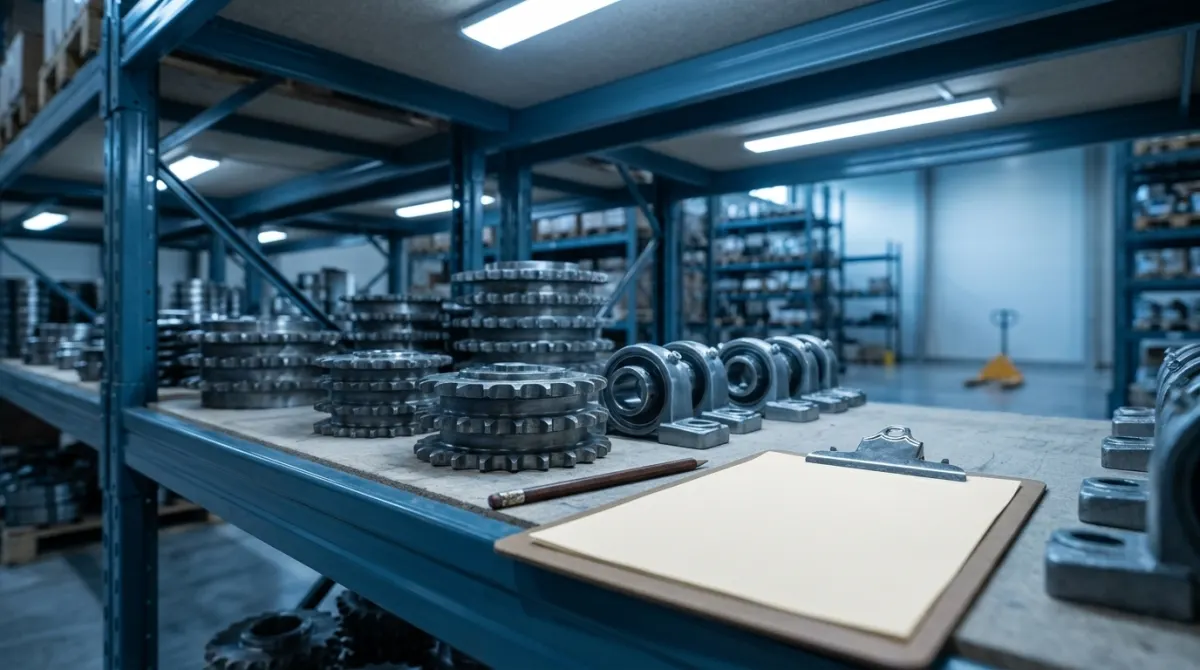
Today's count at OKC is bin K-1-02. The counter's sheet, number CNT-6059:
| Item | Counted |
|---|---|
| SPR-50B18 (Sprocket 50B18 bored-to-size) | 46 |
| UCP205 (Pillow block bearing UCP205 cast iron) | 50 |
Post the count in the Physical Inventory Journal, so BC matches the shelf.
Step by step in Physical Inventory Journals
- 1.
Search for Physical Inventory Journals with the magnifying glass at the top, and open it.
- 2.
Choose Calculate Inventory... on the action bar.
- 3.
Type the count sheet's number, CNT-6059, in Document No.
BC requires it. It ties the adjustments back to the sheet.
- 4.
Set Location Filter to OKC.
- 5.
Type K-1-02 in Bin Filter.
Without it BC calculates every bin in the building.
- 6.
Choose OK. A line appears for each item in the bin.
- 7.
On the SPR-50B18 line, change Qty. (Phys. Inventory) to 46. Quantity shows the difference.
Leave UCP205 as it is: it was counted right, and posting it unchanged adjusts nothing.
- 8.
Choose Post.
- 9.
Choose Yes.
Mistakes that cost money
These are the checks Simetta’s scored test makes on this task, and what each mistake costs a distributor when it happens for real.
Count posted wrong
A count is the one chance to make the system match the shelf. Posting the wrong number bakes the error in.
Adjusted an item that was right
An adjustment to an item that was correct creates the very discrepancy the count was meant to remove.
Simetta is an independent training product. Microsoft, Dynamics 365 and Business Central are trademarks of Microsoft Corporation.